Dashboard Overview
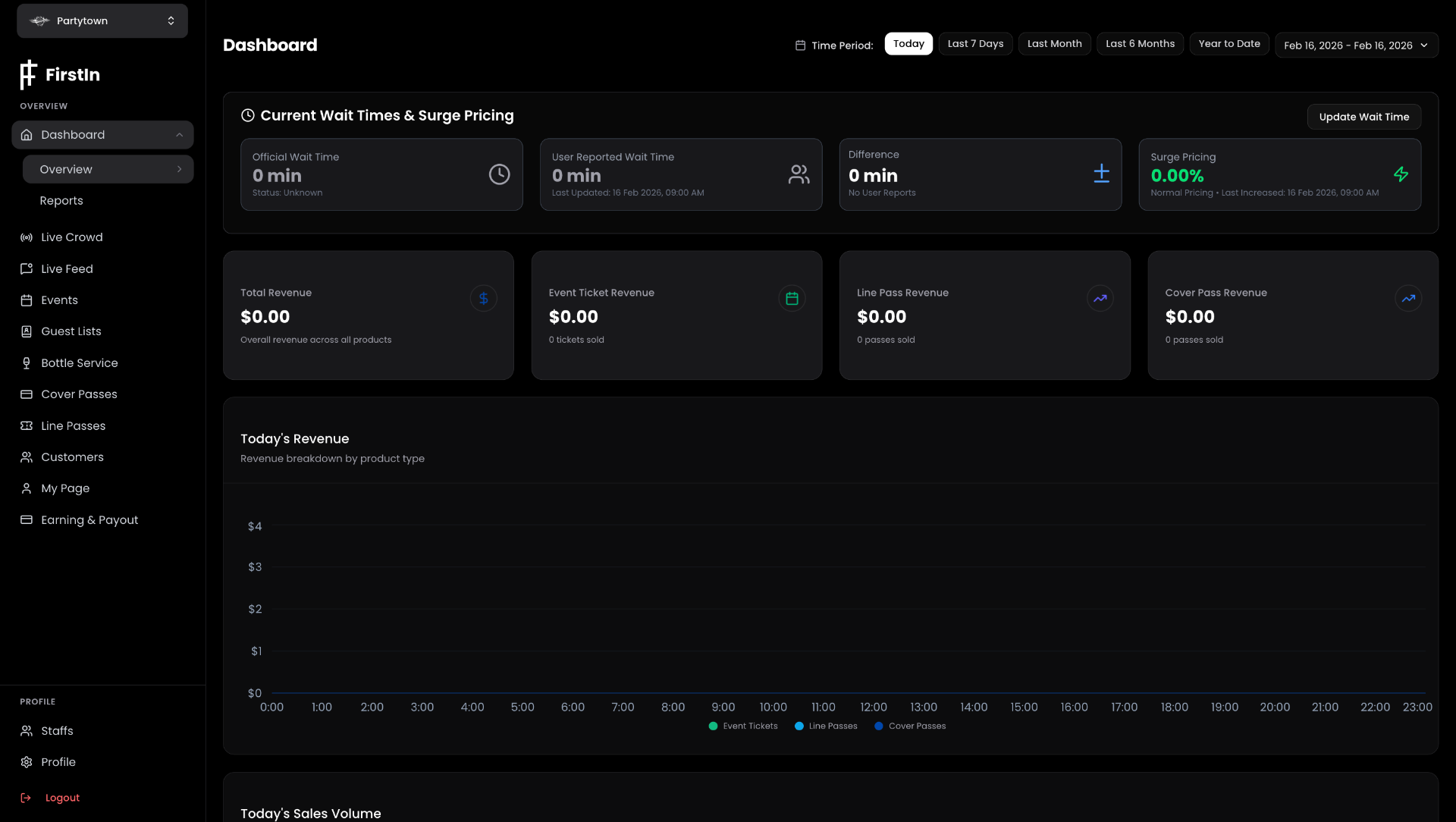
The Dashboard is the first thing you see when you log into FirstIn. It gives you a real-time snapshot of how your venue is performing — revenue, wait times, and surge pricing — all in one place.
The Top Bar — Time Period Filter
At the top of the Dashboard you'll see a row of time period buttons:
- Today — shows data for the current day only
- Last 7 Days — rolling 7-day view
- Last Month — the previous calendar month
- Last 6 Months — broader trend view
- Year to Date — from January 1st to today
- Custom Date Range — pick any start and end date using the date picker on the right
Switching between these updates every number and chart on the page instantly.

Current Wait Times & Surge Pricing
This section sits at the top of the Dashboard and shows live door conditions at your venue.
| Card | What It Shows |
|---|---|
| Official Wait Time | The wait time your venue has manually set. Shows current status (e.g. Unknown, Live) |
| User Reported Wait Time | Wait time reported by guests through the app. Shows when it was last updated |
| Difference | The gap between your official wait time and what users are reporting |
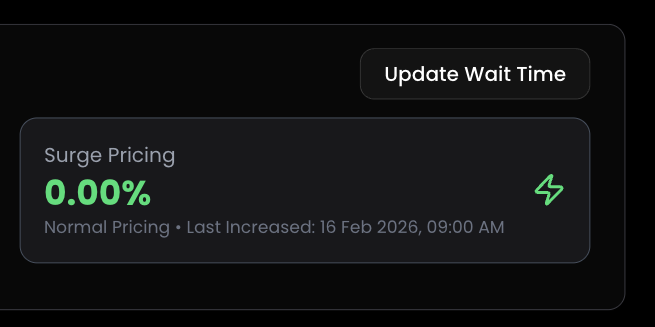
| Surge Pricing | Your current surge pricing percentage. Green means normal pricing is active |

Updating Your Wait Time
Click the Update Wait Time button (top right of this section) to manually set or update the current wait time at your door. This is what guests see when they check FirstIn before heading out.
Revenue Cards
Below the wait time section you'll see four revenue summary cards:
| Card | What It Shows |
|---|---|
| Total Revenue | Overall revenue across all products for the selected time period |
| Event Ticket Revenue | Revenue specifically from event ticket sales, with ticket count |
| Line Pass Revenue | Revenue from Line Pass sales, with pass count |
| Cover Pass Revenue | Revenue from Cover Pass sales, with pass count |

Today's Revenue Chart
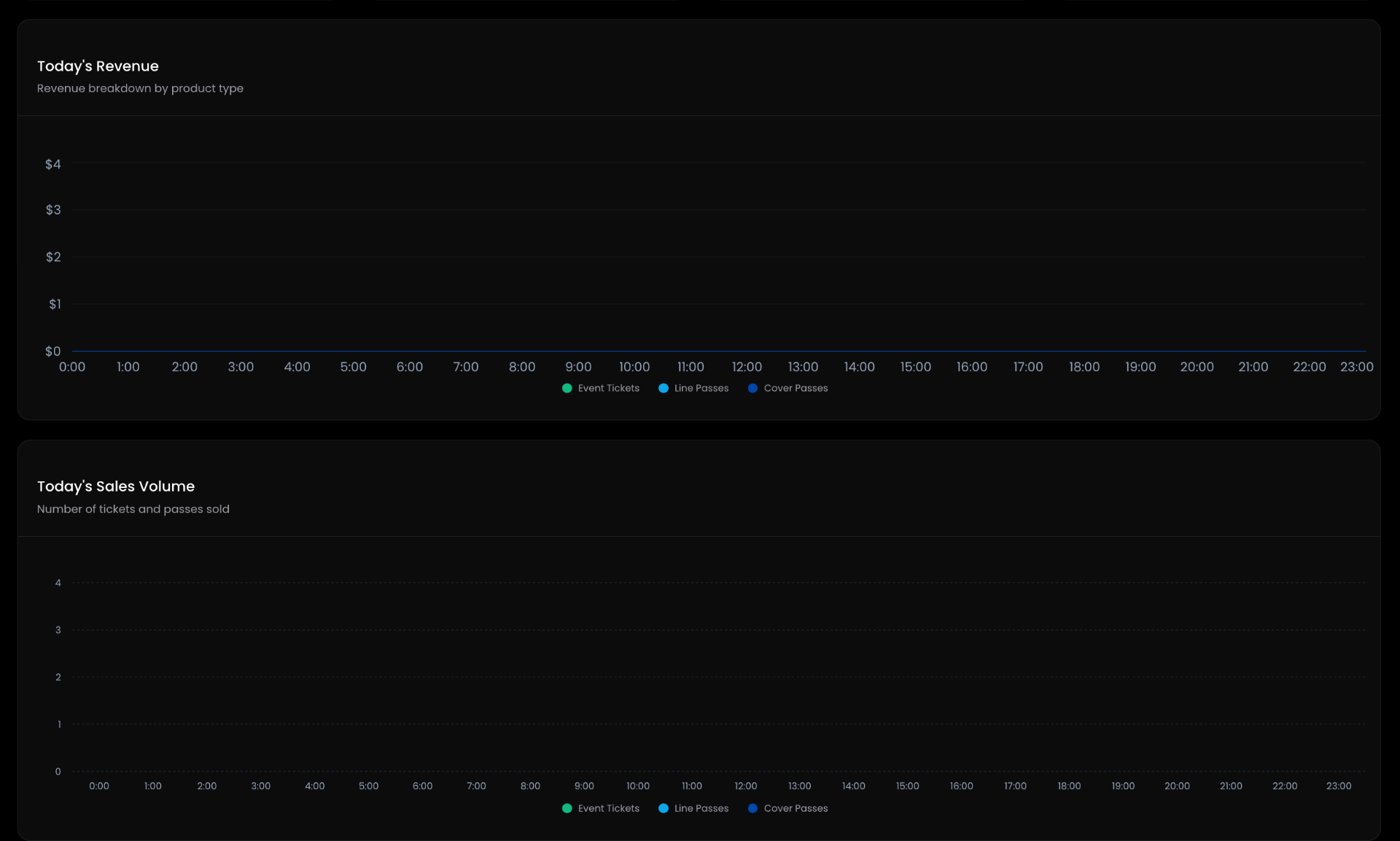
The chart at the bottom of the Dashboard shows your revenue breakdown by product type plotted over time for the selected period. This gives you a visual sense of when revenue is coming in and which products are driving it.
Tips
- Check the Dashboard before opening. A quick glance at surge pricing and wait times helps you set the right tone for the night.
- Use the time period filter for weekly reviews. Switch to "Last 7 Days" every Monday to see how last week performed at a glance.
- Revenue cards update in real time. During a busy night, refresh the Dashboard to see ticket and pass sales as they come in.