My Page
My Page is your venue's profile and settings hub. It's where you manage your venue's information, branding, operating hours, media, and your QR code — everything that represents your venue both inside the platform and to your guests.
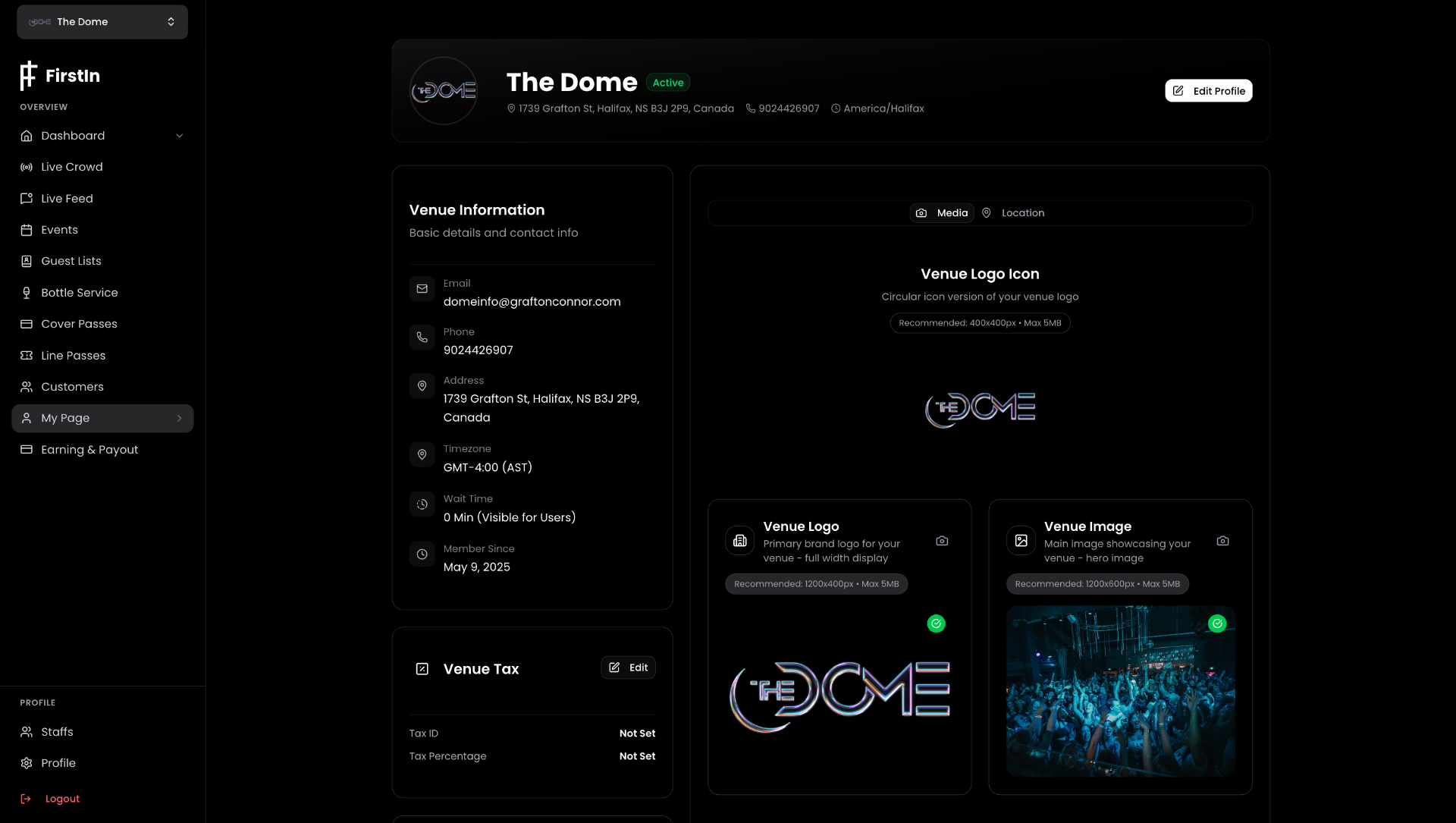
Venue Information
The left panel shows your current venue details at a glance:
- Email — your venue's contact email
- Phone — your venue's phone number
- Address — your full venue address
- Timezone — your venue's timezone (e.g. GMT-5:00 EST)
- Wait Time — your current manually set wait time
- Member Since — the date your venue joined FirstIn
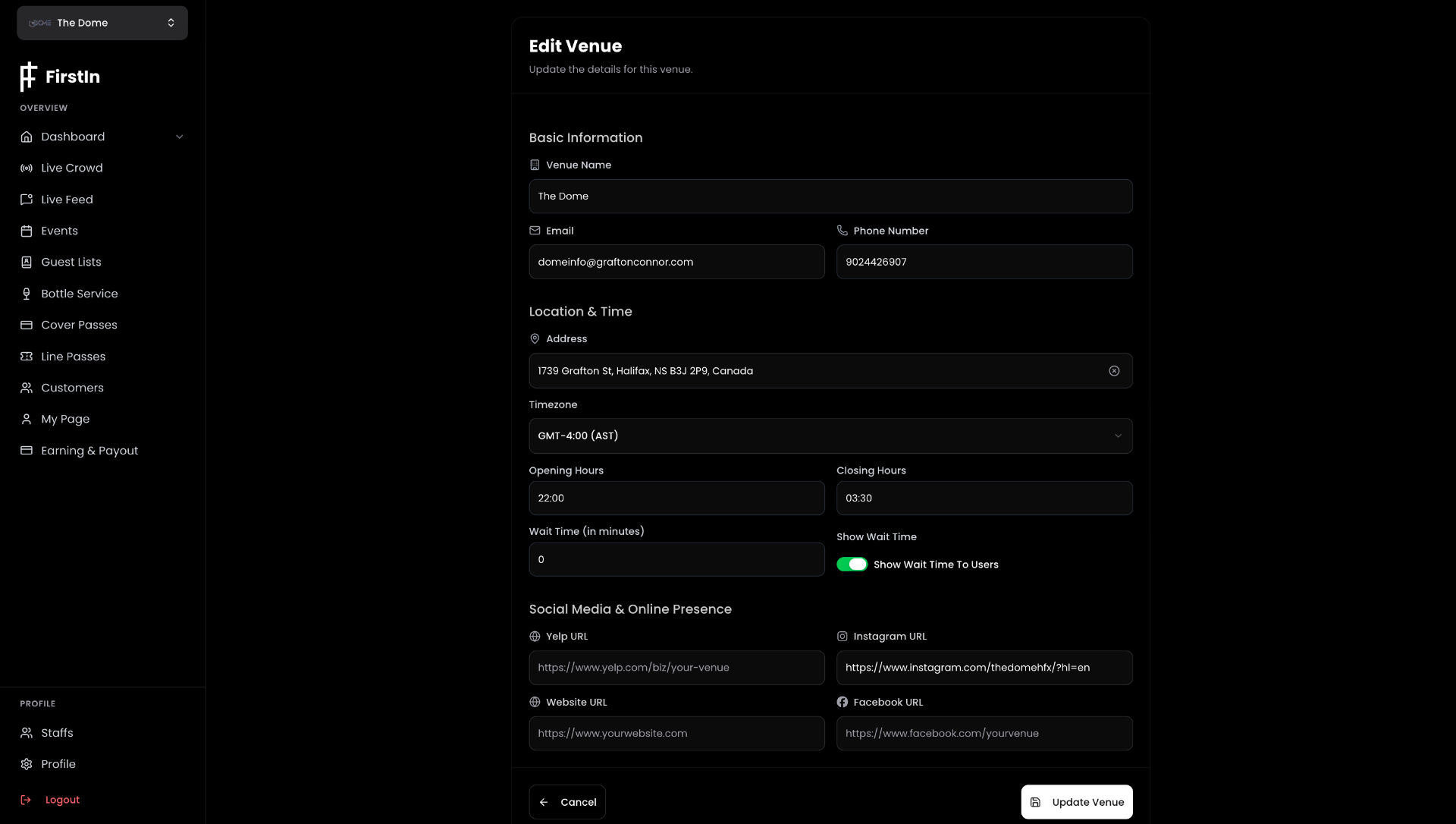
Venue Tax
Below Venue Information you'll see your Venue Tax settings — your Tax ID and Tax Percentage. Click Edit to update these.
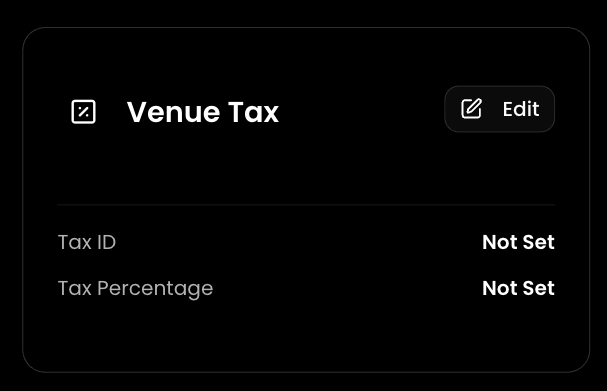
My QR
Your venue has a unique QR code that guests can scan to access your FirstIn page. Click Download to save the QR code image. This QR code can be printed on posters, placed at the entrance, or shared anywhere you want guests to quickly access your guest list or booking pages.
Operating Hours
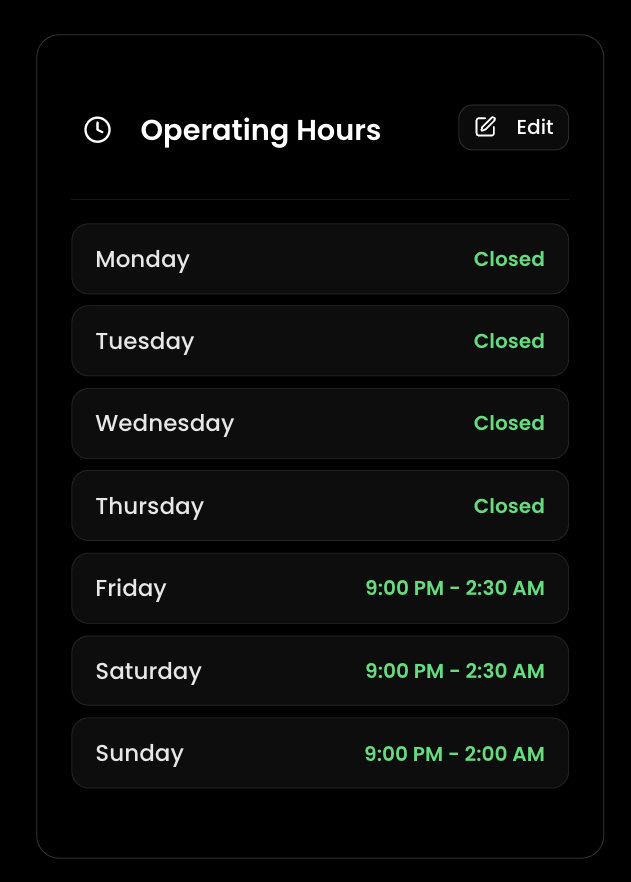
The Operating Hours section shows your current weekly schedule — which days you're open and your opening and closing times. Click Edit to update your hours.
Media Tab
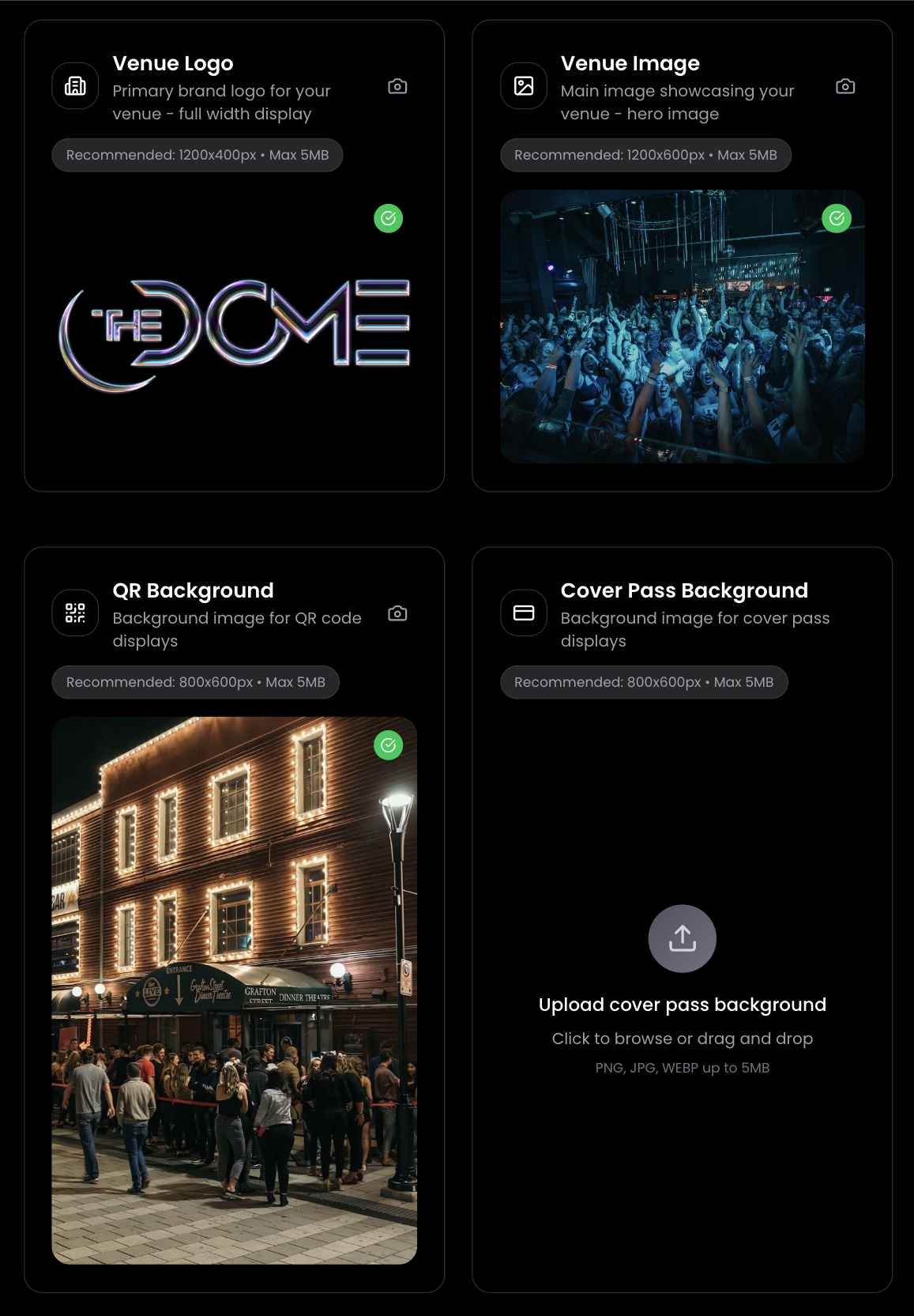
Click the Media tab to manage all your venue's images. There are five image slots:
| Image | Purpose | Recommended Size |
|---|---|---|
| Venue Logo Icon | Circular icon version of your logo | 400x400px |
| Venue Logo | Full-width primary brand logo | 1200x400px |
| Venue Image | Your hero image | 1200x600px |
| QR Background | Background behind your QR code | 800x600px |
| Cover Pass Background | Background for cover pass pages | 800x600px |
All images have a maximum file size of 5MB and support PNG, JPG, and WEBP formats.
Editing Your Venue Profile
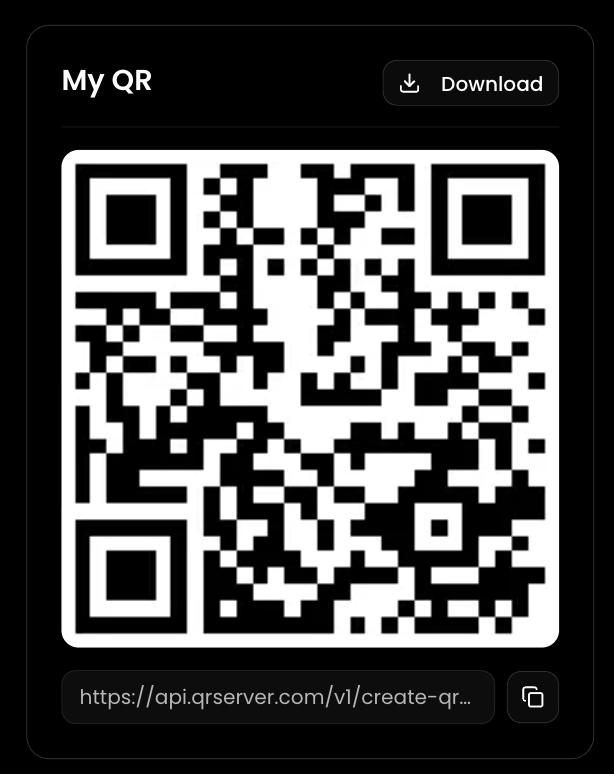
Click Edit Profile to open the full Edit Venue form where you can update Basic Information, Location & Time, and Social Media & Online Presence (Yelp, Instagram, Website, Facebook).

Tips
- Upload all five images — venues with complete, high-quality images look significantly more professional.
- Keep your Operating Hours accurate — this affects what dates guests can register for.
- Add your social media links for free exposure.
- Print your QR code and put it on your front door, Instagram story, and event flyers.